1 video
$12.99USD
$12.99 per video
- 720p · MP4
- Music included · private download
- Unused credits do not expire
- Failed generations return the credit
THE PARTY SCENE. YOUR MOMENT.
Make your own Burning Bridges party video from one photo. Cast yourself as the lead in the scene shown in the examples, with music already included. No filming, editing or prompt writing: download your 20-second, 720p MP4 when it is ready.
Upload one portrait and make your party-video version.
Sign in with Google first, then upload your portrait.
Private uploads. Photos kept up to 7 days. Download videos within 30 days.
VIDEO EXAMPLES
Three portraits, three party moments. See the photo behind each video.
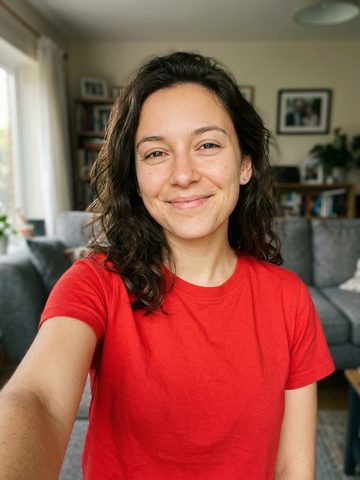
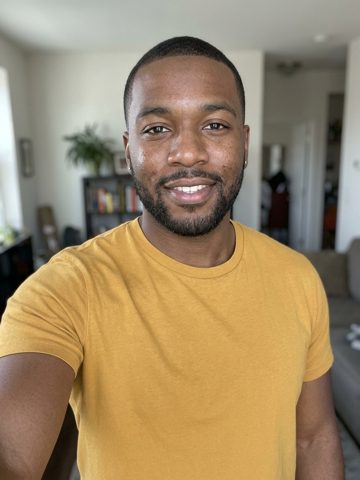
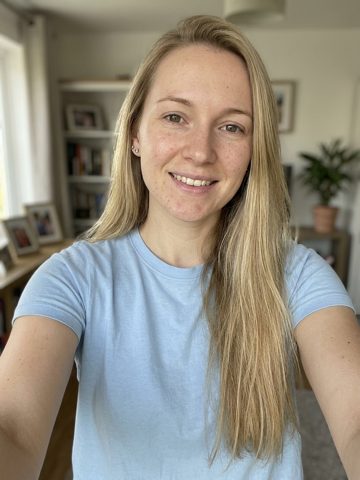
These supplied examples are 480p with music, about 20 seconds each. They were made outside this site. Your video download is 720p, landscape 16:9, with music.
Make yoursBUILT FOR THIS PARTY SCENE
Use this studio when you want the party shown in the examples with yourself as the lead. One portrait is enough: the scene, movement reference and music are ready. You do not need to arrange a shoot, find a template or write a prompt. Your finished 20-second, 720p MP4 includes the music, with no separate audio editing.
Choose a pack of 1, 3 or 10 video credits, without a subscription or automatic renewal. Unused credits do not expire. Once a generation is confirmed failed, its credit is automatically returned. While a video is still processing, check My videos before trying again.
Your account holds your uploads and task history. Photos are kept for up to 7 days and finished videos for 30 days. Save your MP4 before expiry, and compare the public samples before buying: AI likeness and motion can vary from one photo to another.
THE TREND, EXPLAINED
Drake Burning Bridges AI is a photo-to-video generator for making your own version of the Burning Bridges party scene. Your portrait guides the main subject’s appearance; the built-in video reference guides the room, gestures, camera movement and surrounding guests. No prompt writing or party shoot is needed.
The experience is inspired by the Burning Bridges music-video style. Drake Burning Bridges AI is an independent AI entertainment tool; Drake does not endorse or operate this website.
Watch the music video: Drake – Burning Bridges (YouTube) ↗. To make your own version, watch our party examples and choose a portrait.
Understand the trend →YOUR 20 SECONDS IN THE PARTY
Dance, turn to the camera, raise a cup with friends and wave goodbye. Your photo provides the main character’s look throughout this party scene; you do not need to film any of the moves yourself.
The main character dances with a cup as the party fills the background.
The main character turns to the camera, reaches forward and moves to the beat.
The main character turns to nearby guests and raises a cup for a toast.
The main character faces the camera again and brings a hand near their face while the party continues.
A raised cup and a wave to the camera finish the scene.
Play the sample alongside the timeline. Check the face when the subject turns, the hands as they pass the camera, and the cup during the toast. These are useful moments for judging an AI party remake.
These 480p examples help you explore the party style before choosing a photo. Your video will be available to download as a 720p MP4 with music.
The times above are a guide to the sample. Your video may have different timing and details. Turn on the sound and watch a full example before choosing your pack.
Watch the three examples with music →THREE SIMPLE STEPS
Watch the examples first, then sign in with Google and upload one clear portrait. Choose a JPG, PNG or WebP up to 10 MB with the face visible. Your photo casts the lead; you do not need to take it at a party.
Choose a one-time pack of 1, 3 or 10 videos and start generation. Each video uses one credit. The party reference and music are ready, so you do not need to find a template, write a prompt or choose a model.
Follow progress in My videos with the same Google account. Watch the full result with sound, then download the 20-second, 720p, 16:9 MP4 within 30 days. Save a copy to share yourself; music is included in the file.
CHOOSE YOUR MAIN SUBJECT
Choose a bright, sharp portrait with one person and an unobstructed face. Use JPG, PNG or WebP up to 10 MB. Crop a group photo to one person; avoid collages, heavy filters and tiny distant faces.
A front-facing or slightly angled head-and-shoulders photo is a practical starting point. Keep the eyes, nose and mouth visible; avoid sunglasses, a hand covering the face, deep shadows or strong motion blur. If you crop a group photo, leave enough space around the head rather than cutting through the hair or chin.
Look at the red, yellow and blue examples to see different hairstyles and shirts in the same party setting. Choose a recent photo if you want your current look, or one with the hairstyle and outfit you prefer. AI can change small details such as jewelry, logos and fabric patterns.
Upload a photo you have permission to use and get the person’s consent. AI may alter fine details, clothing or hands, so review the entire result before sharing.
Read the photo guide →KNOW WHAT YOU ARE MAKING
Your photo gives the main character their look, while the built-in clip guides the party and movement. AI creates a new video, so the face, gestures and background can vary from the photo and examples.
Upload the person you want to see as the main character throughout the clip. You only need one photo; the other guests come from the built-in scene. This studio uses a fixed party setting, so you cannot choose each guest, change the room or write a custom prompt.
The built-in clip guides the dancing, camera interaction and toast. AI recreates the scene instead of simply pasting a face onto the original footage. That means the timing, hands, cup and people in the background can change as the video is generated.
Watch your video from start to finish with sound before sharing. Check your face as you turn, the hands near the camera, and your clothing during movement. If a video is still processing, check My videos before starting another version so you do not spend an extra credit by mistake.
Kie describes the model’s reference mode as
Kie · Seedance 2.5 documentation ↗Multimodal Reference-to-Video (including reference images, videos, and audio).
CHOOSE YOUR WAY TO MAKE IT
Choose this studio for the shown party scene with one portrait. Film it yourself for control over the performance, use a template to edit existing media, or use a general AI tool to experiment with another scene and your own prompt.
| Compare | Drake Burning Bridges AI | Film it yourself | CapCut template | Your own AI prompt |
|---|---|---|---|---|
| Editing effort | Upload, generate and download; music is already added | Shoot, choose takes, edit and add audio | Add your media and adjust the template as needed | Prepare references, refine prompts and review or edit results |
| What you prepare | One clear portrait of the main subject | Performers, a party setting, a camera and editing time | The photos or clips required by the selected template | A portrait, scene instructions and supported video references |
| Scene and control | The shown party scene is ready; choose the lead with your photo | Choose the setting, choreography, guests and camera work | Preset timing and effects; editable elements depend on the template | More room to change instructions; reference support varies by model |
| Who changes | One main subject; the reference guides other guests | The people you film | Depends on the template and any included AI features | Depends on the model, references and prompt |
| Music | Download includes the music heard in the examples | Record or add permitted audio and align it yourself | Template music or editing options, where available | Audio generation or separate editing depends on the tool |
| Output | 20 seconds · 720p · landscape 16:9 MP4 | Determined by your recording and export settings | Check the template and export settings | Check model duration, resolution and export limits |
| Cost | 1 video for $12.99, 3 for $34.99 or 10 for $99.99; USD before applicable taxes, no subscription | Your time, equipment and any production costs | Free or paid options; check the selected template | Provider charges and any retries or audio editing |
| Choose it when | You want this party scene with your photo and music | You want direct control over the whole performance | You want to arrange existing media with preset edits | You want a different scene or to experiment with prompts |
CapCut templates vary in the photos, editing tools and export options they support. Check your chosen template, including any AI features and charges, before starting. CapCut’s template guide ↗
FROM DOWNLOAD TO YOUR POST
Download your 20-second, 720p landscape MP4 with music, then edit it for the platform you use. For a vertical post, crop or place it in a 9:16 canvas and check the platform’s format and music rules before publishing.
Download from My videos within 30 days and keep a local copy. The landscape frame includes the main subject, nearby guests and more of the party room. Use that original when you want the full composition, or keep it as the source for later edits instead of repeatedly editing a compressed social-media copy.
A 9:16 crop removes much of a 16:9 frame. Keep the main subject visible as they move, and check the raised cup, hands and guests at both edges. If a tight crop loses too much of the scene, place the full landscape clip inside a vertical canvas. The studio itself does not export a native 9:16 version.
Your MP4 includes music. If the preview is silent, turn on the player’s sound and check your device volume. Music rules differ by platform and use: check them before posting, especially for commercial use, and replace the music with an approved track if needed.
Follow the preparation, generation and sharing guide →YouTube Help advises creators to
YouTube Help · Understand three-minute YouTube Shorts ↗use a wider aspect ratio such as 16:9 for long-form videos.A short duration alone does not turn a landscape upload into a Short.
ONE-TIME VIDEO PACKS
No subscription or automatic renewal. Each generation uses one credit for a 20-second, 720p, landscape 16:9 MP4 with music.
$12.99 per video
About $11.66 per video
About $10.00 per video
Prices in USD before applicable taxes. Completed videos are stored for 30 days; download them before expiry. Refund policy ↗
A LITTLE CONTEXT
Understand the Burning Bridges AI party effect, how your portrait and a video reference work together, and when to choose a ready-made scene or a more flexible tool.
02 / GUIDEMake your Burning Bridges AI video from one photo: choose a portrait, sign in, generate and download with music. Includes photo tips, template and prompt advice.
BEFORE YOUR FIRST TAKE
You can make your own version here at Drake Burning Bridges AI. Preview the party examples, sign in with Google and upload one clear portrait. Choose a video pack, generate, then download your 20-second, 720p MP4 with music from My videos. The scene and music are ready; no filming, editing or prompt writing is needed.
You can watch all three examples with music for free, without signing in. Creating your own video is paid: one video costs $12.99 USD before applicable taxes, with no subscription. Preview the examples first to decide whether you like the party style before buying a pack.
You can view examples, prices and guides without an account. Sign in with Google to upload a photo, buy credits and generate. Return with the same Google account to follow progress and download your finished videos; you do not need to create a separate password for this website.
Yes. Upload exactly one clear portrait to cast the main subject. The built-in reference guides the party, movement, camera and other guests, and music is added to the MP4. You do not need to film or edit a party video. Crop a group photo to one person first; the studio casts one lead, rather than every guest.
No. The party scene and music are already prepared. Choose one portrait and generate without downloading a template, writing an AI prompt or assembling clips. For a different scene in another tool, the making guide includes an illustrative prompt to adapt to supported portrait and video references.
It is a photo-to-video remake of the Burning Bridges party-video trend. Upload one portrait to replace the main subject while the reference guides the other people, gestures and camera. It produces a downloadable video, not a live camera filter. This website is independent and is not affiliated with Drake.
Choose a sharp, well-lit portrait with an unobstructed face. Avoid collages, heavy filters, extreme angles and distant figures. JPG, PNG and WebP are accepted, up to 10 MB. You do not need to photograph yourself at a party.
The photo guides appearance and the reference guides the scene, movement and camera. AI can change facial details, clothing, hands and background people. Identical likeness and frame-for-frame motion are not guaranteed. Review the examples before buying.
You receive a 20-second, 720p, 16:9 MP4 with music, following the built-in visual reference. The public examples are about 20 seconds, 480p and include music.
Your video uses the party scene and music shown in the examples, with your photo as the lead. The length is 20 seconds. You can choose the main subject, but you cannot change the scene, music or duration here.
One video is $12.99, three are $34.99 and ten are $99.99. Prices are in USD before applicable taxes. These are one-time purchases with no subscription. Checkout is paused whenever generation is unavailable.
Unused video credits do not expire. Finished videos are stored for 30 days, so download your MP4 before expiry. Photos are kept for up to 7 days. Buying a pack does not extend storage for existing files.
Time depends on the queue and processing. You can leave the page and return to My videos with the same Google account. There is no guaranteed minute count. Check an existing task before submitting another.
A confirmed failed task automatically restores one video credit. An uncertain outcome stays visible while it is checked. Look in My videos before retrying a submission. Credit returns are different from cash refunds; contact support with your task and receipt details for billing questions.
Uploads and generated videos are private to your account. You can download or delete a finished video in My videos. Deletion is permanent and does not restore a credit. Public examples require separate permission.
Use photos you own or have permission to upload, and get the person’s consent. The result is AI-generated entertainment. Do not present it as footage of something that person actually did.
Download your MP4 from My videos within 30 days, then share it yourself. There is no automatic social posting. Review the result and your permissions before sharing; any crop should keep the main subject visible.
This workflow generates new video frames from your portrait and the built-in party reference. It aims to re-create the main subject’s appearance and movement, rather than simply overlaying a face on existing footage. Facial details, hands and background people may change; it is not a live-camera filter or an exact reproduction guarantee.
The studio currently exports landscape 16:9 only. You can crop the downloaded MP4 in an editor, but a vertical crop can remove guests, arm gestures or the moving main subject. Check the whole clip, or place the landscape video inside a vertical canvas to preserve the scene. There is no built-in vertical export or automatic posting.
YOUR PHOTO. YOUR MOMENT.